
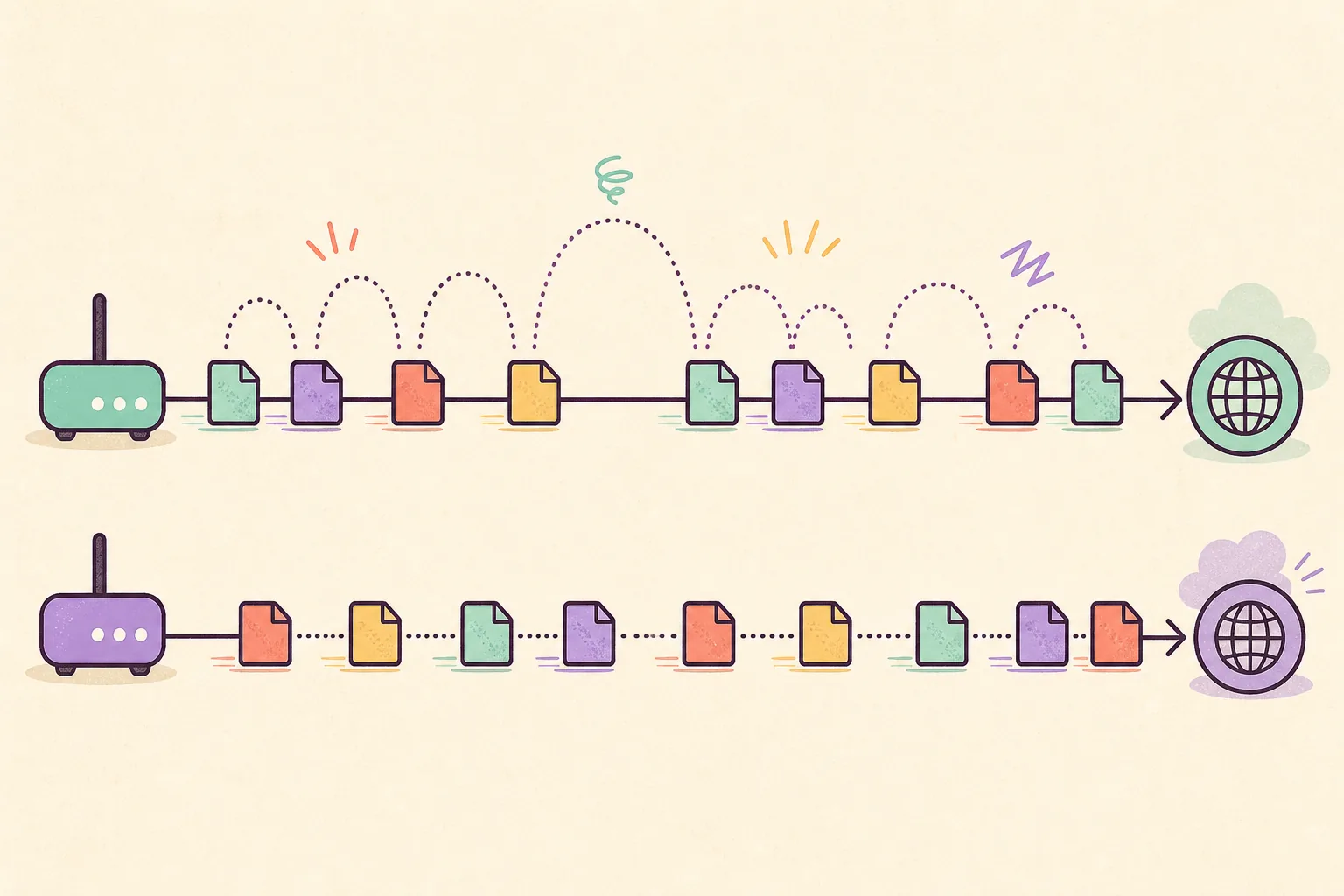
A network jitter test compares packet-delay variation over time, not only average ping. Under roughly 20 ms is often comfortable, sustained values above 30 ms deserve investigation, and Clumsy can model repeatable delay phases but cannot create a true random distribution by itself.
01
What a network jitter test measures
Latency is the time a packet takes to travel; jitter is how much that time changes from packet to packet. If five packets arrive after 40, 41, 39, 42 and 40 ms, the delay is stable. If they arrive after 20, 85, 32, 110 and 24 ms, the average may still look manageable while the experience becomes uneven. Voice, video, remote control and multiplayer applications notice that variation because they expect data on a schedule. For a useful network jitter test, keep the endpoint, sample method and time window stable, then record spikes instead of relying on one averaged number.
Jitter can be reported in different ways. Tools may calculate the mean difference between consecutive samples, a standard deviation, or an estimate defined for a particular protocol. Compare results only when the same tool, endpoint and method are used. A single number from a speed test is useful for screening, but a time series is better evidence because short spikes can disappear inside an average.
The formal concept is documented in RFC 3393 on IP packet delay variation. For application testing, the practical question is whether the product keeps audio intelligible, prevents duplicate actions, preserves session state and recovers when timing stabilizes.
| Condition | What changes | Typical symptom |
|---|---|---|
| Stable latency | Delay stays near one level | Predictable but possibly slow responses |
| Network jitter | Delay rises and falls between packets | Choppy audio, uneven motion or bursty updates |
| Packet loss | Some packets do not arrive | Retries, gaps, reconnects or missing updates |
| Low bandwidth | Transfer capacity is constrained | Large downloads and media fill slowly |
02
What is a good jitter value?
A lower and more consistent value is better, but no universal threshold fits every application. As a practical reading guide, under 20 ms is normally comfortable for common real-time use, 20-30 ms is a caution range worth testing, and sustained readings over 30 ms often become noticeable. Large intermittent spikes can be more damaging than a modest steady value because buffers and prediction logic cannot adapt as easily.
Interpret the number beside baseline latency, packet loss and the workload. A 25 ms jitter result on a 20 ms path is a larger relative disturbance than the same variation on a 250 ms satellite path. A file download may finish correctly despite high jitter, while a voice call can sound broken. Product acceptance criteria should describe the user outcome and not only a generic network score.
Run several samples at the same time of day and keep the endpoint fixed. Wi-Fi interference, VPN routing, background uploads, power-saving behavior and overloaded routers can all change the result. If a problem appears only on one device or access point, isolate that layer before blaming the remote service.
| Observed jitter | Practical interpretation | Suggested action |
|---|---|---|
| 0-20 ms | Usually stable for calls, games and interactive work | Keep as baseline evidence |
| 20-30 ms | Potentially noticeable in sensitive real-time flows | Repeat and inspect spikes |
| 30-50 ms | Instability is likely visible or audible | Test recovery, buffers and feedback |
| Above 50 ms | Severe variation for many real-time experiences | Investigate the path and use controlled stress tests |

03
Can Clumsy simulate network jitter?
Clumsy 0.3 can add a fixed Lag value to matching packets, but its interface does not expose a native random delay range, distribution or per-packet jitter control. The official project lists Lag, Drop, Throttle, Out of order, Duplicate and Tamper modules. It does not claim a dedicated jitter module. Entering 200 ms in Lag produces controlled latency, not automatically a realistic 0-200 ms random variation.
You can still use Clumsy for a repeatable jitter-like test by running the same scenario through several Lag profiles, such as 40 ms, 120 ms, 60 ms and 200 ms, while keeping the filter and every other module unchanged. Each profile is deterministic during its run; the variation appears across controlled phases rather than randomly inside every packet stream. This is useful for UI state, timeout and recovery checks, but it is not a substitute for a tool that supports statistical delay distributions.
For per-packet randomization, automated distributions or laboratory-grade impairment, choose a purpose-built network emulator and document its model. Use Clumsy when the goal is a transparent Windows desktop test with narrow filters and manually controlled phases. The official jagt/clumsy repository is the authority for available modules and source behavior.
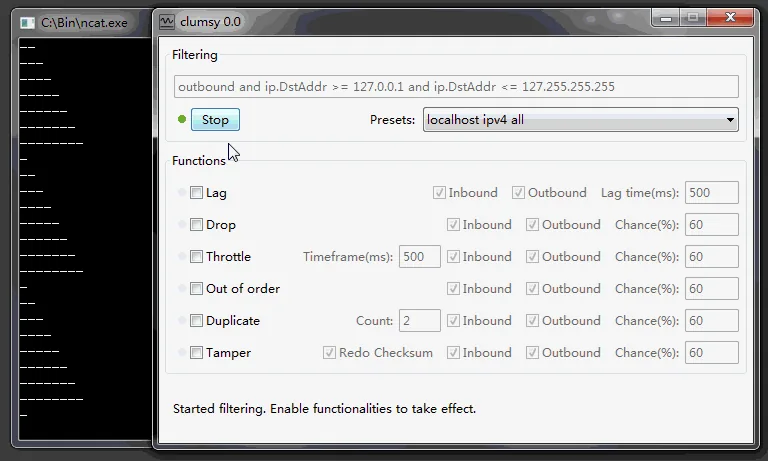
Describe the result as a variable-delay profile test or jitter-like approximation. Do not claim that Clumsy 0.3 generates native random jitter.
04
How to run a repeatable jitter-like test with Clumsy
Choose one authorized application action: join a test call, load a known dashboard, reconnect a test client or perform a single game-lab movement sequence. Record the normal completion time and visible states before impairment. Close unrelated network activity so the filter and observation remain understandable.
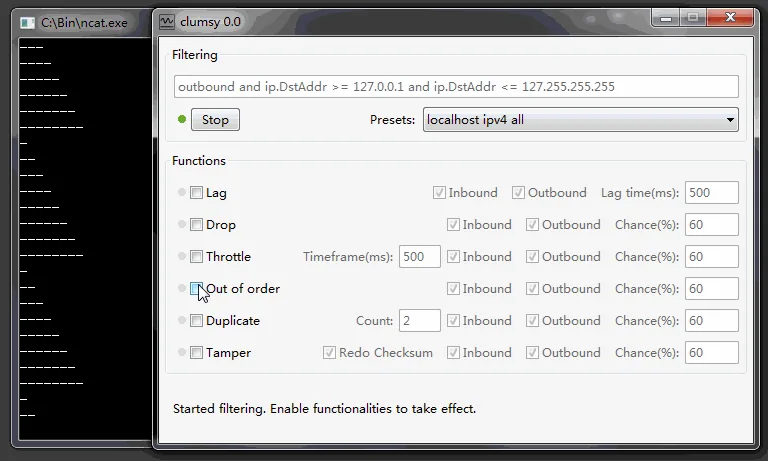
Use a narrow WinDivert filter for the test target. Start with Lag only; leave Drop, Throttle, Duplicate, Out of order and Tamper disabled. Move through a written delay profile and spend the same amount of time on each phase. A simple first profile is 40 ms baseline stress, 120 ms moderate delay, 60 ms partial recovery and 200 ms severe delay, followed by Stop and a clean baseline rerun.
Record timestamps, the active Lag value, UI feedback, audio/video behavior, retries, duplicate submissions, reconnect duration and errors. The evidence should show which transition caused the problem. If you change delay, packet loss and bandwidth together, the test may look dramatic but cannot explain the cause.
- Measure the baselineRepeat one action without Clumsy and record timing, state changes and logs.
- Scope the filterMatch only the authorized test traffic and confirm unrelated browsing remains normal.
- Apply the written Lag profileRun 40, 120, 60 and 200 ms phases for equal durations without enabling other modules.
- Observe transitionsCheck loading feedback, media continuity, timeout handling, retries and session state after every change.
- Stop and prove recoveryDisable filtering, rerun the baseline and confirm performance and state return to normal.
05
How to diagnose high network jitter
First decide whether the issue is local, path-related or application-specific. Compare Ethernet with Wi-Fi, pause large uploads, disconnect optional VPNs, and test another device on the same router. If only Wi-Fi is affected, inspect channel congestion, signal quality, roaming and power saving. If every device shows spikes, the router, ISP path or upstream service deserves attention.
Use continuous ping or an application-specific monitor to capture a time series, but remember that ICMP behavior may differ from the real protocol. For calls and games, capture in-app telemetry when available. Correlate jitter spikes with packet loss, CPU load, buffer underruns and reconnect events. The strongest diagnosis links a network change to a user-visible outcome and repeats under the same conditions.
Do not use Clumsy to fix live jitter. It is an impairment tool for controlled testing. Recovery actions may include reducing Wi-Fi interference, enabling appropriate quality-of-service settings, correcting bufferbloat, changing VPN routes, updating network drivers or escalating a reproducible trace to the ISP or service operator.
- Compare wired and wireless results.
- Pause cloud sync, uploads and system updates.
- Keep the test endpoint and tool consistent.
- Save a time series instead of one screenshot.
- Correlate network spikes with application evidence.
06
Common jitter testing mistakes
The most common mistake is treating latency and jitter as synonyms. A fixed 300 ms delay can be severe without having much variation. Another mistake is publishing one threshold as a universal rule. Calls, remote desktops, games, telemetry and bulk transfers tolerate different patterns, and buffers can hide short variation while adding more latency.
Avoid testing on production traffic, using a broad filter, changing several modules at once or ending without a recovery check. Do not describe community builds or modified executables as official releases. The page links to the official GitHub 0.3 release page for the download. Direct asset HTTP responses were not confirmed in this environment, so verify the filename, size and SHA-256 locally after downloading. If a future release appears, its controls and behavior must be rechecked before the instructions are called current.
Finally, do not infer causation from a speed-test label alone. Preserve the raw samples, environment, endpoint, Clumsy profile, application logs and outcome. That record turns a vague report of lag into a test that developers and network teams can reproduce.
FAQ
Network jitter FAQ
What is network jitter in simple terms?
Network jitter is the change in packet delay over time. Packets arrive at uneven intervals instead of following a stable rhythm.
Is 30 ms jitter bad?
A sustained 30 ms result can be noticeable for calls, games and other real-time traffic. Repeat the test, inspect spikes and judge the application outcome rather than relying on one universal threshold.
What causes network jitter during games?
Common causes include Wi-Fi interference, congestion, bufferbloat, overloaded routers, unstable routes, VPN paths and background uploads. Compare wired and wireless tests and save a time series.
Does Clumsy have a native jitter setting?
No. Clumsy 0.3 provides a fixed Lag time field but no random delay range or distribution. Use written Lag phases for a repeatable jitter-like approximation.
What is the difference between latency and jitter?
Latency is packet travel time; jitter is the variation in that time. A path can be consistently slow with low jitter or fast on average with disruptive spikes.
Can Clumsy fix network jitter?
No. Clumsy intentionally impairs matching traffic for testing. Diagnose and correct Wi-Fi, router, VPN, driver, congestion or provider issues separately.
How do I test network jitter?
Measure a baseline to the same endpoint over a defined interval, save the packet-delay series, repeat at comparable times and compare the variation rather than only the average. If you use Clumsy, change one delay phase at a time and stop the test before checking recovery.