
Test the same target several times with a clean baseline, compare ping or pathping results from your computer and gateway, and keep an evidence log. Use Clumsy afterward only to reproduce a known loss condition inside an authorized application test; it does not diagnose your ISP or repair a broken route.
01
What packet loss means before you test
Packet loss means that packets sent across a network path do not reach the next expected stage or do not return in time for the measurement. A browser may show a timeout, a call may freeze, a game may report missing updates, or an upload may retry. Those symptoms are useful clues, but none of them proves that packet loss is the cause. DNS delay, server overload, Wi-Fi interference, congestion and an application timeout can look similar.
A packet loss test is therefore a comparison exercise, not a single button press. You need a target, a time window, a baseline and enough repeated samples to tell a short-lived event from a repeatable pattern. Test your local gateway as well as a reliable external target. If the gateway loses packets, the problem is close to the computer or local network. If only the distant target shows loss, the evidence points farther along the route or to the target itself.
Keep the diagnostic question separate from the simulation question. A real packet-loss check asks whether the connection is dropping traffic now. A Clumsy test asks how an application behaves when you deliberately drop selected traffic. The existing Clumsy packet loss simulator guide covers retries, duplicate operations and recovery after you have already chosen a controlled test condition.

02
Start with a clean packet-loss baseline
A good baseline makes later comparisons possible. Write down what you tested before you interpret a percentage.
Choose one stable destination that you are allowed to test, then record the date, connection type, Windows device, Wi-Fi or Ethernet state and any VPN or proxy in use. Do not run several network tests at once. Pause downloads, cloud sync and video calls where practical, because competing traffic can change the result you are trying to measure.
Test three points when the problem is intermittent: the local router or gateway, a dependable public address, and the service or host where the failure is visible. The comparison is more useful than a single number. A clean gateway result with loss only at one service may indicate a remote or route-specific issue; loss at the gateway suggests that you should inspect the local link before changing the application.
Repeat the same check at more than one time. One missed reply can be a transient event, and zero missed replies in a short sample cannot prove that a connection is perfect. Record packet count, lost packets, average delay and the exact target. This evidence also helps support staff reproduce the question without guessing what ‘slow’ meant.
- Record the baselineNote the target, interface, time, VPN state and the application symptom before running commands.
- Check the gatewayUse the local router address to separate a local Wi-Fi or Ethernet problem from a distant route.
- Check a second targetRepeat the same sample against a stable external target and preserve the raw output.
- Repeat laterRun the same test at another time before calling a short spike a persistent failure.
| Evidence | What it can tell you | What it cannot prove |
|---|---|---|
| Gateway loss | The local link, router or wireless segment needs attention | That the ISP or remote service is also losing packets |
| External target loss | The route or target may be affected | That every website or application has the same loss |
| Application timeout | The product experienced a failed or slow operation | That packets were dropped rather than delayed or rejected |
| One missed reply | A sample contains an event worth repeating | A stable long-term packet-loss rate |
03
Use Windows commands to test packet loss
The simplest first check is ping against the same target for a repeatable count. It gives you sent packets, replies, loss and round-trip timing. Some hosts block ICMP, so a 100% loss result can mean ‘no ping response’ rather than ‘all application traffic is lost’. Treat the command as evidence about that target and protocol, not as a universal internet health score.
pathping adds a route view and collects samples at intermediate hops. It may take several minutes and can show loss at a router that is simply rate-limiting diagnostic replies while forwarding traffic normally. Compare the pattern across later hops instead of blaming the first row that contains a percentage. The Microsoft pathping documentation explains the command's purpose and options.
For a deeper Windows capture, check whether your build provides pktmon and read the current Microsoft Pktmon documentation. Use it when you need packet-level evidence near a Windows interface, not as a replacement for a clear hypothesis. Keep captures scoped and short, save the command output, and avoid changing filters while you are comparing two runs.
- Run a fixed ping sampleUse one destination and a known count, then save the complete output instead of copying only the final percentage.
- Compare the gatewayRepeat the sample against the local gateway or a known local hop when the issue appears on Wi-Fi or Ethernet.
- Trace the pathUse pathping when you need route context, but interpret intermediate-hop loss together with later-hop results.
- Capture only when neededUse Pktmon or another approved capture method for a focused investigation and keep the time window documented.
04
How to read packet-loss results without overclaiming
Look for consistency across targets and time windows. If the gateway is clean but one service shows loss, repeat from another connection or ask the service owner for server-side evidence before changing your home network. If the gateway shows loss at the same time that multiple applications fail, inspect signal strength, cable, router load, driver state and local interference.
Do not convert every pathping hop into a diagnosis. Routers commonly treat ICMP replies differently from forwarded application traffic. The more persuasive signal is a loss pattern that continues to later hops and lines up with the user-visible failure. A high round-trip time without loss is a latency problem; a lost reply without application impact may be a measurement limitation.
Keep a small incident table with the target, sample size, lost packets, average delay, time, interface and symptom. When the evidence changes after a router restart or cable swap, record that action. Reproducibility matters more than a dramatic percentage copied from a single run.
| Pattern | More useful next step | Avoid concluding |
|---|---|---|
| Gateway and external target both lose packets | Inspect local link, router, wireless conditions and cabling | That a specific app is the root cause |
| Gateway is clean; one service fails | Repeat from another path and request server-side logs | That the whole internet connection is broken |
| No loss; delay is high | Investigate latency, queueing or route distance | That packets are being dropped |
| Ping loses replies; app works | Check whether the target rate-limits ICMP | That application traffic has the same loss rate |
05
When an online packet-loss test helps
An online packet loss test can be a convenient first signal because it gives a quick browser-facing result and may expose loss that appears outside one local destination. It is useful for a before-and-after comparison, a second opinion and a simple report that a non-technical teammate can reproduce.
It is not a substitute for testing the gateway and the affected service. The browser test uses its own server, protocol, route, sample size and measurement method. A result can differ from a game, VPN, video call or internal business application because those flows take different paths. A large navigational keyword such as packet loss test often points to an online tester, while this page targets the informational question of how to diagnose the result on Windows.
Use the same location, time and connection when comparing an online test. Record the test URL and method, do not paste private addresses or account data into an unknown form, and treat the output as one piece of evidence. If the result conflicts with your local commands, repeat both tests before escalating.
Online tools measure the path to their own servers. They can support a comparison, but they cannot prove that every application, route or device has the same packet-loss rate.
06
Use Clumsy to simulate packet loss after diagnosis
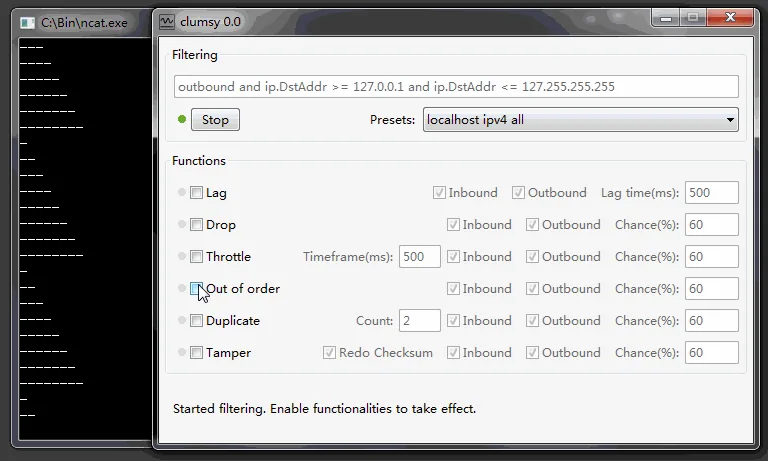
Clumsy answers a different question: how does a real Windows application behave when selected traffic is deliberately impaired? Use it for authorized QA, reliability and recovery tests after you understand the normal baseline. Choose the official 0.3 ZIP, extract the complete archive and keep the filter narrow. The official Clumsy 0.3 Release page is the source for the direct archive used by this site.
Enable Drop by itself with a modest starting chance, perform one known operation and record what the client, server and user interface do. A missing response does not prove that a mutation failed; the server may have completed it before the response was discarded. Check request IDs, idempotency keys and server records before repeating a payment-like, message or job-creation action.
Select Stop, repeat the baseline and confirm that normal connectivity returns. If you need the full controlled-simulation procedure, use the Clumsy packet loss simulator guide. If the problem is that Clumsy itself cannot start filtering, use the error code 3 troubleshooting page instead of treating a driver error as network evidence.
07
Packet-loss diagnosis checklist
Before you report packet loss, make sure another person could repeat the same question. Include the target, sample count, time, interface, gateway result, external result, command output and user-visible symptom. If you used an online test, include the test server and method. If you used Clumsy, keep its simulation results separate from the diagnosis record.
Escalate based on the pattern rather than the most alarming line. A local loss pattern calls for router, Wi-Fi, cable or driver checks. A service-specific pattern calls for route comparison and service-side logs. A clean network measurement with a failing app calls for application telemetry, timeout and retry review. The correct next step is often another controlled comparison, not a higher impairment value.
Stop testing when the scope is no longer authorized or when the result could disrupt a shared connection. Do not use Clumsy as a lag switch, anti-cheat bypass or way to interfere with other users. A safe test has a narrow filter, a reversible condition and a recovery proof at the end.
- Define the affected application, destination and expected symptom.
- Run a clean gateway and external baseline before changing anything.
- Save raw ping, pathping or capture output with the exact time and target.
- Compare repeated samples instead of treating one lost reply as a rate.
- Separate real network diagnosis from Clumsy's deliberate simulation.
- Stop authorized tests and confirm recovery before leaving the workstation.
FAQ
How to test packet loss on Windows FAQ
What is the easiest way to test packet loss on Windows?
Start with a fixed ping sample against the local gateway and a dependable external target. Save the full output, repeat it later and compare the pattern instead of relying on one percentage.
Does 100% ping loss prove that my internet is down?
No. The target may block or rate-limit ICMP replies. Compare the gateway, another target and the application that is actually failing before treating the result as a complete outage.
Should I use an online packet loss checker?
An online checker can provide a useful second comparison, but it measures the route to its own server. Pair it with a local gateway check and evidence from the affected service.
Can Clumsy diagnose real packet loss?
No. Clumsy deliberately changes selected traffic so you can test application resilience. Use ping, pathping, approved packet capture and service logs to investigate real loss first.
What is the difference between packet loss and latency?
Latency is the time traffic takes to arrive; packet loss means traffic does not arrive or a reply is not received. Retries can make loss look like extra latency, so use timestamps and logs to separate them.
Why did the packet-loss test pass after I changed nothing?
Loss can be intermittent and may depend on Wi-Fi conditions, congestion, route selection or the target's reply policy. Repeat the same test at another time and record the conditions rather than declaring the first result wrong.